
How to Add a Bot to Telegram Without Breaking Your Group Setup
A practical step-by-step guide to creating a Telegram bot, adding it to a group, choosing the right permissions, and avoiding the setup mistakes that create manual work later.
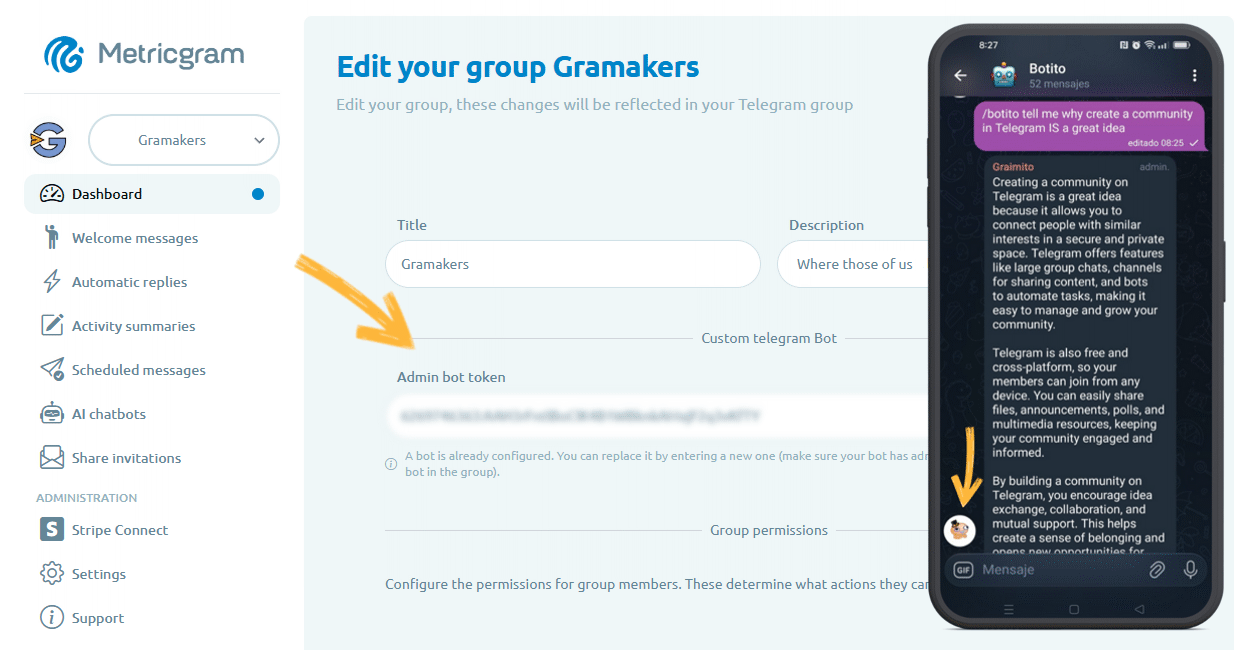
Live directory
Browse Metricgram's curated Telegram directory to find active communities by category and language, and see how leading groups position their listings.
Open directoryAdding The Bot Is The Easy Part
Most Telegram bot tutorials stop too early.
They explain how to create a bot with @BotFather, copy the token, and add the bot to a group. That part matters, but it is not the part that usually goes wrong.
What usually goes wrong is everything after that:
- the bot is added without a clear purpose;
- it gets too many admin rights;
- privacy mode is misunderstood;
- commands are never tested in a real group flow;
- nobody defines what the bot should automate and what humans should still handle.
If you are running a community, support group, paid group, or customer space on Telegram, that sloppy setup creates friction fast.
This guide is the cleaner version.
What Telegram's Official Docs Say
Telegram's official Bots introduction explains that bots are special accounts designed to handle messages automatically. Telegram's Bot API docs also make two things very clear:
- you create new bots through
@BotFather; - bots can receive updates either with long polling or webhooks.
Telegram's official FAQ also points users to @BotFather as the starting point for bot creation.
That matters because there is a difference between:
- creating the bot account;
- connecting that bot to actual logic;
- giving it the right access in a group.
You need all three.
Ready to improve your Telegram group? Start your 14-day Metricgram trial.
Start free trialStep 1: Decide What The Bot Should Actually Do
Before you create anything, write down the real job.
Common examples:
- welcome new members;
- share onboarding links;
- answer common questions;
- moderate spam or blocked words;
- check payment or subscription status;
- automate access to premium communities;
- send alerts, reminders, or summaries.
This sounds basic, but it affects every later decision.
If the bot only needs to answer commands, it may not need admin rights at all.
If it needs to delete spam, approve join requests, remove expired members, or manage invite flows, then permissions become more important and more sensitive.
Step 2: Create The Bot With BotFather
Open Telegram and search for @BotFather.
Then:
- Start a chat with
@BotFather. - Send
/newbot. - Choose a display name.
- Choose a username ending in
bot. - Save the API token somewhere secure.
That token is the credential that lets your application act as the bot. Do not paste it into shared docs or leave it floating in chat threads.
If the token leaks, rotate it in @BotFather.
Step 3: Connect The Bot To Real Logic
Creating the bot does not make it useful yet.
You still need a service that tells the bot what to do. That can be:
- your own backend;
- a hosted workflow;
- a product like Metricgram when the use case is tied to Telegram group operations.
Telegram's Bot API supports two update models:
- long polling, which is simpler for small setups and testing;
- webhooks, which are better for production automation.
Telegram's docs recommend using a secret path in your webhook URL so only Telegram knows the endpoint.
If your use case is community operations rather than custom software, this is where many teams overbuild. They start writing their own bot flow when the real need is simpler:
- invite the right people;
- remove the wrong people;
- trigger onboarding messages;
- keep access in sync with billing or subscription state.
Step 4: Add The Bot To The Right Telegram Space
Now add the bot to the actual place where it should work.
For most teams, that means a group. In some cases it may be a channel plus a linked discussion group.
In the group:
- Open the group profile.
- Tap
Add membersorAdministrators, depending on what you need. - Search for the bot username.
- Add it like any other account.
At this point, do not grant every permission by default.
A bot should have the minimum access required for the job you defined in step 1.
Step 5: Understand Privacy Mode Before You Blame The Bot
This is one of the most common setup mistakes.
Privacy mode is enabled by default for bots added to groups, except bots added as group admins. With privacy mode on, bots generally receive:
- commands explicitly meant for the bot, such as
/command@this_bot; - general commands such as
/startif the bot was the last bot to send a message to the group; - inline messages sent via the bot;
- replies to messages implicitly or explicitly meant for the bot.
Bots also receive all service messages, regardless of privacy mode.
Bot admins receive all messages, regardless of privacy mode. That means a bot may appear "broken" when it is actually respecting privacy mode.
If your bot needs to read broader group activity, you may need to disable privacy mode with /setprivacy in @BotFather or design the workflow around explicit commands and events instead. After changing this setting, re-add the bot to the group for the change to take effect.
Do not disable privacy mode casually. Only do it when the use case requires it.
Step 6: Give Admin Rights Only If The Job Requires Them
Telegram's admin rights model is granular. The official admin rights reference shows that admin powers are separated into distinct capabilities such as deleting messages, banning users, pinning messages, managing video chats, and more.
That is useful because "make the bot admin" is too vague.
Instead ask:
- should it delete messages?
- should it ban users?
- should it invite users?
- should it pin messages?
- should it manage join requests?
Examples:
- a FAQ bot may need no admin rights;
- a moderation bot may need delete and ban rights;
- a premium access bot may need invite-management or membership-related rights;
- an analytics or support bot may only need command-level interaction.
Over-permissioning is a bad habit. If the bot token is ever exposed or the workflow is misconfigured, excess rights turn a small mistake into a bigger incident.
Step 7: Test the real workflow beyond /start
A bot is not ready because /start works in a private chat.
Test the actual group workflow:
- Join with a fresh test user.
- Trigger the main command or welcome path.
- Check whether the bot can see what it needs to see.
- Confirm that any moderation or invite action really works.
- Verify what happens when the bot lacks permission.
- Verify what happens when a user should lose access.
This is where many paid communities discover their setup is only half built.
The bot exists, but no one verified the operational edge cases.
Common Mistakes
The most common mistakes are operational, not technical:
- using one bot for too many unrelated jobs;
- granting full admin rights without thinking through risk;
- misunderstanding privacy mode;
- never documenting who owns the bot token;
- forgetting removal flows and focusing only on onboarding;
- building a custom bot when the actual requirement is access automation.
If your group depends on subscriptions, billing, approvals, or segmented access, the real problem is rarely "how do I add a bot?" The real problem is "how do I avoid turning membership operations into a manual task every day?"
Where Metricgram Fits
Metricgram is useful when the Telegram bot is not the product by itself, but part of a larger membership workflow.
That is especially true when you need to:
- connect Telegram operations to Stripe-backed subscriptions;
- automate who gets in and who loses access;
- handle onboarding without manual invite chasing;
- reduce moderator busywork in premium or client communities;
- keep paid groups clean when users cancel or fail payment.
In that setup, the bot is one component. The real value is the operational system around it.
What matters most
Adding a bot to Telegram is easy.
Adding the right bot, with the right permissions, the right privacy settings, and the right operational design is what actually matters.
If you get that part right early, your community stays manageable as it grows.
If you get it wrong, the bot becomes one more thing admins have to babysit.
Ready to manage your Telegram group with Metricgram?
Automate tasks, track analytics, and grow your community with a 14-day free trial. No credit card required.
Start free trialGet weekly Telegram community tips
Join community managers who receive our best tips, guides, and product updates.
You may also like
Telegram For Educators: How To Run Cohorts, Student Communities, And Office Hours Without Replacing Your LMS
Telegram is a strong fit for educators when it is used as the live layer around a course or training business. This guide explains how to use it for cohorts, student communities, office hours, and support without turning it into a substitute for your LMS.
Telegram MCP Server: Give AI Agents the Full Telegram Bot API, Safely
What a Telegram MCP server is, why wrapping the Telegram Bot API for AI agents is harder than it looks, and how Metricgram exposes 70+ Bot API methods as secure, group-scoped MCP tools.