
How to Create a Telegram Group: Complete Step-by-Step Guide
Learn how to create a Telegram group from scratch. Step-by-step instructions for mobile and desktop, plus essential settings, permissions, and admin tips for new groups.
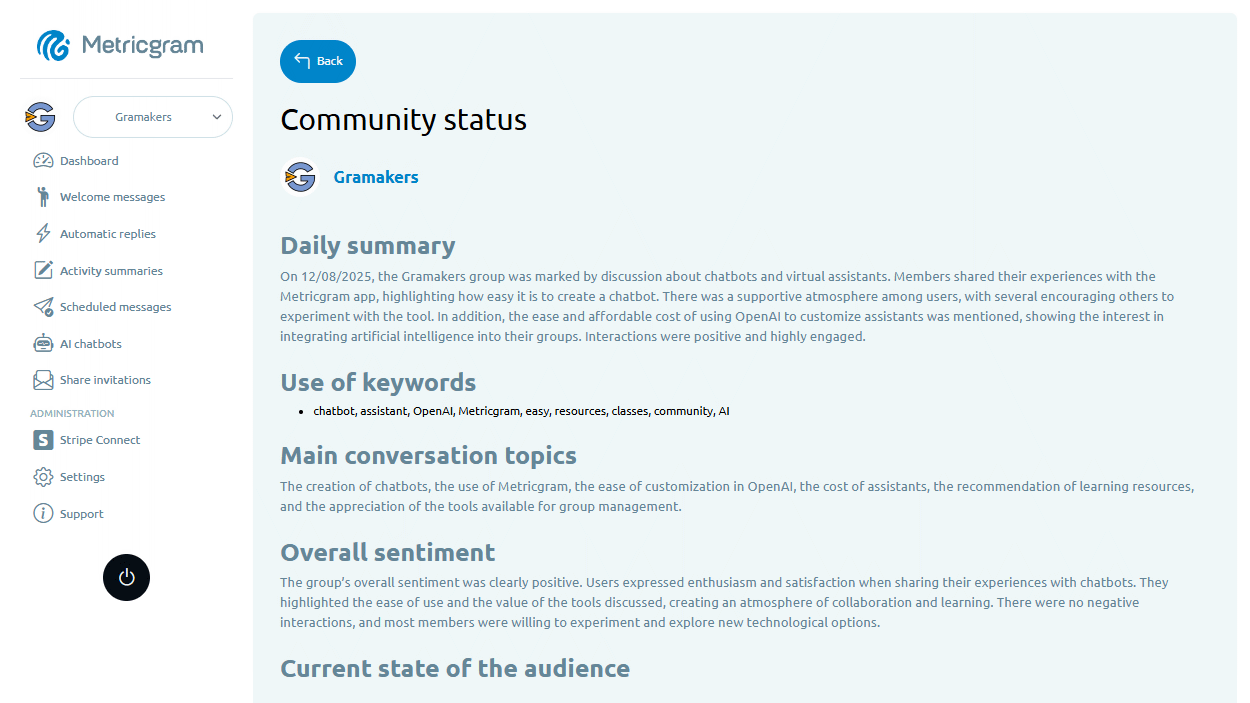
Live directory
Browse Metricgram's curated Telegram directory to find active communities by category and language, and see how leading groups position their listings.
Open directoryWhy Create a Telegram Group?
Telegram groups are where real communities happen. Unlike channels, which are one-way broadcasts, groups let members talk, ask questions, share resources, and build relationships. Whether you're starting a community around your brand, organizing a team, or connecting people who share an interest, a Telegram group is the best tool for the job.
Groups support up to 200,000 members, offer granular admin permissions, and work across every platform. And creating one takes about 60 seconds.
Here's exactly how to do it on every device, plus everything you need to configure right after.
How to Create a Telegram Group on Android
- Open Telegram and tap the pencil icon (bottom right) to start a new message.
- Tap New Group.
- Select at least one contact to add as the first member. You can add more later — just pick one to get started.
- Tap the arrow to proceed.
- Enter your group name. Keep it clear and descriptive. Something like "Crypto Traders Hub" or "Barcelona Runners" works better than vague names.
- Optionally, tap the camera icon to set a group photo. Do this now — groups with photos look more professional and get more joins.
- Tap the checkmark to create the group.
That's it. Your group exists. You're the owner and sole admin.
Ready to improve your Telegram group? Start your 14-day Metricgram trial.
Start free trialHow to Create a Telegram Group on iOS
- Open Telegram and tap the compose icon (top right corner) to create a new message.
- Tap New Group.
- Add at least one contact. Same as Android — you need a minimum of one member to proceed.
- Tap Next.
- Choose your group name and optionally set a group photo.
- Tap Create.
The process is nearly identical to Android. Once created, you'll land inside the group and can start configuring it.
How to Create a Telegram Group on Desktop and Web
If you prefer working from your computer:
- Open Telegram Desktop or Telegram Web (web.telegram.org).
- Click the hamburger menu (three lines, top left) or the pencil/compose icon.
- Click New Group.
- Add at least one contact from your list.
- Click Next.
- Enter the group name, set a photo if you want, and click Create.
Desktop is actually the best place to set up a group if you plan to configure a lot of settings right away. The larger screen makes it easier to navigate menus.
Essential Group Settings to Configure Immediately
Creating the group is step one. Configuring it properly is what separates a functioning community from a chaotic mess. Open your group's settings by tapping the group name at the top.
Group Name and Photo
Your group name is the first thing people see. Make it specific enough that someone can tell what the group is about without reading the description. Avoid generic names like "My Group" or "Chat."
Set a group photo that's recognizable at small sizes. A logo or icon works better than a photograph.
Description
Tap Edit and fill in the group description. This appears when someone previews the group before joining. Use it to explain:
- What the group is about
- Who it's for
- What members can expect
- Any important rules or expectations
Keep it under 250 characters for maximum impact. Front-load the most important information.
Permissions
This is where most new group creators make mistakes. Go to Permissions in group settings and review each one:
- Send Messages — Leave on unless you want a read-only announcement group.
- Send Media — Consider turning off for new groups to prevent spam. You can open it up later.
- Send Stickers/GIFs — Personal preference. In professional groups, turning these off reduces noise.
- Send Polls — Usually safe to leave on.
- Add Members — Decide whether any member can invite others, or only admins. For controlled growth, restrict this.
- Pin Messages — Restrict to admins only. You don't want random members pinning things.
- Change Group Info — Restrict to admins only. Always.
Chat History for New Members
This setting matters more than people think. Under group settings, you'll find Chat History for New Members:
- Visible — New members can read all messages sent before they joined. Good for communities where context matters.
- Hidden — New members only see messages from the moment they join. Better for private or sensitive groups.
For most community groups, set history to visible. It gives new members something to read and helps them understand the group culture before posting.
Public vs. Private Groups
This is one of the most important decisions you'll make.
Private Groups
- Accessible only through an invite link.
- Don't appear in Telegram search results.
- Better for paid communities, teams, exclusive groups, or any group where you want to control who joins.
- You can revoke the invite link at any time to stop new joins.
For more on managing your invite links, read our guide on Telegram group links.
Public Groups
- Have a permanent username (like @YourGroupName).
- Appear in Telegram search results.
- Anyone can find and join without an invite link.
- Better for open communities, brands, and groups targeting organic growth.
To make your group public:
- Go to group settings.
- Tap Group Type.
- Select Public Group.
- Choose a username. This becomes your permanent link: telegram.me/YourGroupName.
Pick your username carefully. Keep it short, relevant, and easy to spell. You can change it later, but your old link will stop working.
Our recommendation: Start private, get your settings and rules dialed in, then switch to public once you're ready for open growth. A messy first impression pushes people away permanently.
Setting Up Admins
You're the owner. You have full control. But as your group grows, you'll need help. Here's how to add admins:
- Go to group settings.
- Tap Administrators.
- Tap Add Admin.
- Select a member from the group.
- Configure their permissions.
Admin Permissions to Understand
Telegram gives you granular control over what each admin can do:
| Permission | What It Does | Who Needs It |
|---|---|---|
| Change Group Info | Edit name, photo, description | Senior admins only |
| Delete Messages | Remove any message | All moderators |
| Ban Users | Kick and ban members | All moderators |
| Invite Users via Link | Create and manage invite links | Growth managers |
| Pin Messages | Pin messages to the top | Content managers |
| Manage Video Chats | Start and manage voice/video chats | Event organizers |
| Remain Anonymous | Post as the group instead of personal name | Optional |
| Add New Admins | Promote other members to admin | Owner and senior admins only |
Key rule: Give each admin only the permissions they need. Don't make everyone a super-admin. One rogue admin with too many permissions can destroy a group.
Give every admin a custom title that describes their role (Moderator, Community Manager, Support). It helps members know who to contact for what.
First Things to Do After Creating Your Group
The group is created and configured. Now what? Here's your launch checklist.
1. Set Group Rules
Write 5-7 clear rules and pin them as the first message. Cover the basics:
- What's on-topic and what's not
- Self-promotion policy
- Respect and behavior expectations
- Consequences for breaking rules (warning, mute, ban)
Don't overthink it. You can update rules as you learn what your group actually needs. Check our group management guide for rule templates and best practices.
2. Set Up a Welcome Message
First impressions matter. When a new member joins, they should immediately know where they are and what to do.
A good welcome message includes:
- A greeting with the member's name
- A one-sentence description of the group
- A link to the rules
- An invitation to introduce themselves
Setting up automated welcome messages manually through Telegram is limited. Tools like Metricgram's welcome messages feature let you create rich, personalized welcomes that trigger automatically for every new member — no manual effort required.
3. Create and Share Your Invite Link
Go to group settings and tap Invite Links. You'll find your default link there, or you can create new ones. Consider creating separate links for different sources (website, social media, email) so you can track where your members come from.
For a deep dive on invite link strategy, read Telegram Group Links: How to Create, Share, and Manage Them.
4. Post Seed Content
An empty group feels dead. Before inviting anyone, post 5-10 messages that set the tone:
- Share a useful resource
- Ask an interesting question
- Post a short introduction about yourself and why you started the group
- Share a relevant article or link
This gives new members something to react to instead of staring at an empty chat.
5. Set Up Auto-Replies
If your group gets common questions ("How do I join the paid tier?", "Where are the resources?", "What are the rules?"), set up automatic replies to handle them. This saves you from answering the same thing a hundred times and ensures members get instant responses even when you're offline.
Common Mistakes New Group Creators Make
Not Setting Permissions Early
The default Telegram permissions are wide open. Every member can send media, add other members, and post links. This is fine for a group of 5 friends. For a community, it's an invitation for spammers. Lock down permissions before you start growing.
Inviting Everyone at Once
Don't blast your entire contact list with a group invite. Start with 10-20 people you know will be active. Let them set the culture and activity level. Then gradually expand. A group of 200 silent members feels worse than a group of 20 active ones.
No Rules Until Problems Happen
By the time you need rules, the damage is done. Someone has already spammed the group, started a fight, or posted something inappropriate. Write rules before your first drama, not after.
Ignoring Analytics
You can't improve what you don't measure. From day one, you should know: how many members are joining and leaving, how active the group is, who your most engaged members are, and what times are most active.
The Metricgram dashboard gives you all of this in real time — member growth trends, activity heatmaps, engagement scores, and daily reports. Setting up analytics early means you have data to compare against as your group grows.
Trying to Do Everything Manually
Welcome messages, rule enforcement, FAQ responses, member tracking, spam removal — doing all of this by hand works for a 50-member group. It breaks completely at 500. Automate early so you build good systems before you need them desperately.
Growing Your Group From Zero
You've created the group. It's configured properly. Rules are set. Welcome message is ready. Now you need members.
Start With Your Existing Audience
Share your group link on your website, email newsletter, social media profiles, and other communities where you're already active. The people who already follow you are the most likely to join and participate.
Cross-Promote With Related Groups
Find groups in adjacent niches and propose cross-promotion. If you run a Python programming group, connect with data science or web development groups. Share each other's links. This works better than cold outreach because the audiences are already relevant.
Create Share-Worthy Content
The fastest organic growth comes from members sharing your group with their own contacts. This only happens if the group provides genuine value. Focus on quality discussions, exclusive insights, or resources people can't find elsewhere.
Use Your Group Link Everywhere
Add your Telegram group link to your email signature, business cards, website footer, social media bios, and anywhere else your audience might see it.
Be Consistent
The biggest killer of new groups isn't lack of members — it's inconsistency. Post daily. Respond to messages. Start discussions. If the founder isn't active, nobody else will be either.
For more strategies on keeping your community alive and thriving, read our guide to boosting Telegram group engagement.
What Comes After Creation
Creating a Telegram group takes a minute. Building a community takes consistent effort. The technical setup is the easy part. What matters is what you do every day after that: welcoming new members, sparking conversations, enforcing rules fairly, and tracking your progress with real data.
Set up Metricgram from day one to track your group's growth, automate your welcome messages, and get actionable analytics. The groups that succeed are the ones that start measuring from the beginning — not the ones that try to figure out what happened after members start leaving.
Ready to manage your Telegram group with Metricgram?
Automate tasks, track analytics, and grow your community with a 14-day free trial. No credit card required.
Start free trialGet weekly Telegram community tips
Join community managers who receive our best tips, guides, and product updates.
You may also like
Telegram For Podcasters: How To Build Listener Community, Paid Access, And Launch Momentum Beyond The RSS Feed
Podcasts are great for trust and habit, but weak for direct listener interaction. This guide explains how podcasters can use Telegram for launch rooms, paid communities, and listener retention without confusing it with podcast hosting.
Telegram For Freelancers: How To Use It For Clients, Leads, And Community Without Creating More Admin Work
Telegram can be useful for freelancers, but only if it has a clear job. This guide explains when to use Telegram for client communication, lead nurturing, paid communities, and peer groups without turning it into operational clutter.