
Telegram Group Limits, Common Errors, and FAQ (2026)
Answers to the most common Telegram group questions: member limits, 'this group can't be displayed' errors, transferring ownership, recovering deleted groups, and more.
Live directory
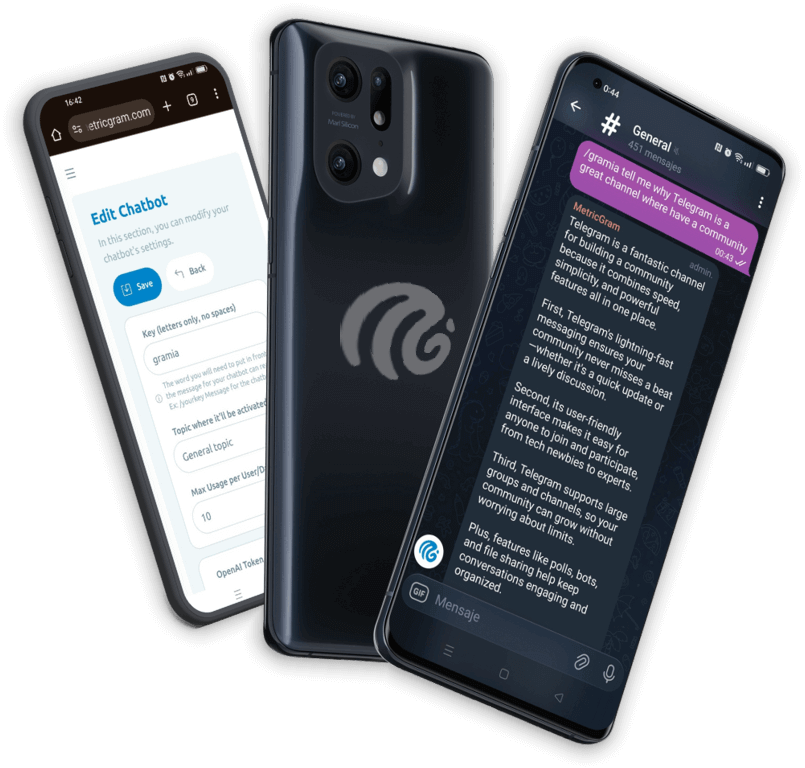
Browse Metricgram's curated Telegram directory to find active communities by category and language, and see how leading groups position their listings.
Open directoryEvery Admin Runs Into These Questions Eventually
Whether you just created your first Telegram group or you're managing a community with thousands of members, you'll hit questions that Telegram's help docs don't answer clearly. How many people can actually join? Why does the group say "can't be displayed"? Can you get a deleted group back?
This FAQ covers the most common questions about Telegram group limits, errors, and everyday management tasks. Straight answers, no fluff.
If you're looking for a broader guide to running a group professionally, start with our Telegram group management guide.
What Is the Telegram Group Member Limit?
The maximum number of members in a Telegram basic group is 200. A Telegram supergroup can have up to 200,000 members.
A few things to keep in mind:
- There is no way to increase this limit. 200,000 is the hard ceiling. If you're approaching it, you'll need to consider splitting into multiple groups or using a Telegram channel for broadcasts paired with smaller discussion groups.
- Bots count toward the limit. Every bot you add to the group occupies one member slot. If you're running 10 bots, that's 10 fewer humans who can join.
- Removed or banned members free up slots. Once someone leaves or is banned, their slot becomes available again.
- Telegram channels have no member limit. If you need to broadcast to an unlimited audience, a channel is the right tool. See our comparison of Telegram groups vs channels for more.
For most communities, 200,000 is more than enough. The real challenge isn't hitting the member cap -- it's keeping those members active and engaged. A dashboard that tracks engagement metrics is worth more than another 10,000 silent members.
Ready to improve your Telegram group? Start your 14-day Metricgram trial.
Start free trialWhat Is the Admin Limit for Telegram Groups?
You can have up to 50 admins in a Telegram group. Each admin can be assigned custom permissions, so you can have some admins who only handle moderation while others manage settings or post on behalf of the group.
Practical tips:
- Don't make everyone an admin. More admins means more people who can accidentally (or intentionally) change settings, delete messages, or ban members. Keep the number tight.
- Use custom admin titles to clarify roles. Telegram lets you set a custom label for each admin that appears next to their name.
- Bots can be admins too and they count toward the 50-admin limit. Most management bots need admin privileges to function, so factor that in.
If you're running a large community and need more than 50 people helping with moderation, consider using a bot-based member management system that lets non-admin moderators perform actions through the bot.
"This Group Can't Be Displayed" -- What It Means and How to Fix It
This is one of the most frustrating errors on Telegram. You tap on a group and instead of seeing the chat, you get the message: "This group can't be displayed because it was used to spread pornographic content" or simply "This group cannot be displayed."
Here's what's actually happening:
Why it appears:
- The group was reported and restricted by Telegram. If enough users report the group for violating Telegram's Terms of Service (spam, adult content, violence, etc.), Telegram may restrict access to it. The content doesn't have to be posted by admins -- member-posted content can trigger this too.
- Regional restrictions. Some groups are restricted in certain countries based on local regulations. The group may work fine for users in one country but show this error in another.
- Your Telegram client is filtering it. On iOS especially, Telegram applies stricter content filtering due to Apple's App Store policies. A group that loads fine on Android or Telegram Desktop might show "can't be displayed" on iPhone.
How to fix it:
- Try Telegram Desktop or Telegram Web. If the restriction is iOS-specific, accessing the group from a desktop client or web.telegram.org will often work.
- On Android, go to Settings > Privacy and Security > Sensitive Content, and enable "Disable filtering." This option is not available on iOS.
- If you're the admin, review the group content and remove anything that could violate Telegram's Terms of Service. Then contact @SpamBot or submit an appeal through Telegram's support.
- If the group was incorrectly flagged, you can appeal through Telegram's in-app support (Settings > Ask a Question). Include the group link and explain that the content complies with Telegram's Terms.
- Prevent it proactively by setting clear group rules, enabling slow mode to reduce spam floods, and using automated moderation to catch problematic content before it gets reported.
This error is recoverable in most cases, but it takes time. Telegram support isn't known for fast responses.
How to Transfer Ownership of a Telegram Group
You can transfer group ownership to another admin, but Telegram has strict security requirements:
Prerequisites:
- You must have two-step verification (2FA) enabled on your account for at least 7 days before the transfer.
- The person receiving ownership must also have 2FA enabled.
- You must have been logged into your current session for at least 24 hours.
Steps:
- Open the group and go to the member list.
- Tap on the person you want to make the new owner (they must already be an admin).
- Tap "Edit Admin" (or the pencil icon).
- Scroll down and tap "Transfer Group Ownership."
- Confirm with your 2FA password.
Important notes:
- Once transferred, you lose all owner privileges. You'll still be an admin, but the new owner can remove you.
- There is no way to reverse this without the new owner transferring it back.
- If the current owner's account is deleted or inactive, there is no way to claim ownership. Telegram does not reassign ownership under any circumstances.
Plan ahead. If you're building a community for a business, make sure more than one person has access to the owner account, or set up clear succession plans.
Can You Recover a Deleted Telegram Group?
No. Once a Telegram group is deleted, it is gone permanently. There is no recovery option, no support ticket that will bring it back, and no grace period.
This means:
- All messages are permanently deleted.
- All member associations are lost.
- The group link becomes invalid.
- Any media, files, or shared content within the group is gone.
How to protect yourself:
- Never delete a group impulsively. If you want to stop managing it, transfer ownership or simply leave.
- Restrict who can delete the group. Only the group owner can delete it, but make sure 2FA is enabled to prevent unauthorized access.
- Back up important content. Use Telegram's export feature (Desktop only: Settings > Advanced > Export Telegram Data) to save chat history before making any drastic changes.
- Use topic archives. Instead of deleting old groups, archive them by revoking the invite link and setting them to read-only.
If you're managing multiple groups, keeping organized records of group links, admin lists, and key settings in a centralized dashboard prevents you from losing track of critical information.
How to Leave a Telegram Group
Leaving is simple:
- Open the group.
- Tap the group name at the top to open the group info.
- Scroll down and tap "Leave Group" (or "Delete and Leave").
What happens when you leave:
- You are removed from the member list.
- You stop receiving notifications.
- The group chat disappears from your chat list.
- Your previous messages remain in the group unless you select "Delete and Leave" (which deletes your messages for everyone).
- Other members can see that you left.
- If it's a public group, you can rejoin at any time. If it's private, you'll need a new invite link.
Silencing without leaving: If you don't want to leave but need a break from notifications, muting is a better option (see the muting section below).
How to Remove or Ban Someone From a Telegram Group
Admins can remove members in two ways:
Kick (remove without ban):
- Tap the member's name in the group.
- Tap "Remove from Group."
- The person is removed but can rejoin if they have the invite link.
Ban (remove and block from rejoining):
- Tap the member's name.
- Tap "Ban User" or go to the member's admin menu and select "Restrict User," then uncheck all permissions and set the duration.
- Banned users cannot rejoin through any invite link until unbanned.
Best practices:
- Always state the reason. Whether publicly or via DM, tell the person why they were removed. It reduces drama and repeat offenses.
- Use progressive discipline. Warning, then mute, then temporary ban, then permanent ban. Jumping straight to a ban for minor offenses creates a hostile atmosphere.
- Keep a log. If you're managing a large group, tracking who was banned and why prevents confusion when multiple admins are moderating. A member management tool automates this record-keeping.
How to Add Someone to a Telegram Group
There are three ways to add members:
- Share the invite link. Go to Group Info > Invite Link, copy it, and send it to the person. They tap the link to join.
- Add directly from contacts. In the group, tap "Add Members" and select from your contact list. The person will be added immediately (unless they've restricted who can add them to groups).
- Use a username. If you know their Telegram username, you can search for them and add them directly.
Limits to know:
- Telegram limits how many people you can add directly per day to prevent spam. The exact number varies but is typically around 20-50 per day per account.
- If someone has their privacy settings set to "Nobody" for group invitations, you cannot add them directly. You can only send them the invite link.
- Bots cannot add users to groups. Users must join voluntarily.
How to Mute a Telegram Group
If a group is too noisy but you don't want to leave:
- Open the group.
- Tap the group name at the top.
- Tap "Notifications" or "Mute."
- Choose the mute duration: 1 hour, 8 hours, 2 days, or forever ("Disable").
Additional noise reduction:
- Mention-only mode. Even when muted, you'll still get notifications if someone @mentions you. This is often the ideal setting for busy groups.
- Customize notification sounds. You can set a different (or silent) notification tone for specific groups.
- Archive the group. Swipe left on the group in your chat list and tap "Archive." It moves to a hidden folder and won't appear in your main list unless someone mentions you.
Telegram Group vs Supergroup -- What's Different?
When you create a group on Telegram, it starts as a basic group. An admin can convert it to a supergroup, which raises the member limit to 200,000. Reaching 200 members alone does not automatically convert the group. This is a one-way conversion, so you cannot go back.
| Feature | Basic Group | Supergroup |
|---|---|---|
| Member limit | 200 | 200,000 |
| Message history for new members | Not visible | Visible (configurable) |
| Admin permissions | Basic | Granular per-admin |
| Pinned messages | 1 | Unlimited |
| Bots with admin rights | Limited | Full support |
| Slow mode | No | Yes |
| Topics | No | Yes |
| Message editing history | No | Available |
| Anti-spam tools | Basic | Advanced |
Should you upgrade manually? Yes, if you plan to grow. Supergroup features like granular admin permissions, slow mode, and persistent message history are essential for any serious community. The upgrade is instant and doesn't affect existing members or messages.
For a deeper dive into group types and when to use each, read Telegram groups vs channels.
Can You Schedule Messages in a Telegram Group?
Yes, but with limitations.
Telegram's built-in scheduling:
- Type your message in the group.
- Instead of tapping Send, long-press the send button.
- Select "Schedule Message" and pick the date and time.
This works for individual messages, but it has drawbacks:
- Only the person who scheduled the message can see or edit it before it's sent.
- There's no dashboard showing all upcoming scheduled messages across your groups.
- If you log out or lose access to your account before the scheduled time, the message won't be sent.
- You can't schedule recurring messages (e.g., "post this every Monday at 9 AM").
For professional community management, a dedicated scheduled messages tool solves all of these problems -- recurring schedules, team visibility, cross-group management, and reliable delivery.
How to Pin Messages in a Telegram Group
Pinned messages stick to the top of the group and serve as persistent announcements.
To pin a message:
- Long-press (or right-click on desktop) the message you want to pin.
- Select "Pin."
- Choose whether to send a notification to all members about the pin.
Limits and tips:
- Supergroups support unlimited pinned messages. Basic groups only support one.
- Members can tap the pinned area at the top of the chat to cycle through all pinned messages.
- Pin your group rules, important announcements, and resource links.
- Avoid pinning too many messages -- if everything is pinned, nothing is.
File Size and Media Limits in Telegram Groups
Telegram is generous with file sharing compared to most messaging platforms:
- Maximum file size: 2 GB per file (for any file type).
- Photo compression: Telegram compresses photos by default. To send full-resolution images, send them as files instead of photos.
- Video size: Up to 2 GB. Videos over 30 seconds get compressed unless sent as files.
- Voice messages: No specific limit, but extremely long voice messages may fail to upload on slow connections.
- Stickers and GIFs: No meaningful limit on sending, but custom sticker packs are limited to 200 stickers per pack.
- Polls: Up to 10 options per poll, with option text up to 100 characters each.
These limits are per-message. There's no total storage cap for a group -- Telegram stores everything in the cloud indefinitely (unless messages are manually deleted).
Stop Guessing, Start Managing
These questions come up because managing a Telegram group involves more moving parts than most people expect. Member limits, permissions, error messages, moderation actions -- it adds up fast, especially when you're running more than one group.
Instead of juggling settings, googling error messages, and manually tracking who did what, use tools built for the job. Metricgram gives you a centralized dashboard for analytics, member management, scheduled messages, and automation -- so you can focus on your community, not on Telegram's quirks.
If you're just getting started, our guide to creating a Telegram group walks you through the setup. For ongoing management strategy, the complete management guide covers everything from rules to monetization.
Ready to manage your Telegram group with Metricgram?
Automate tasks, track analytics, and grow your community with a 14-day free trial. No credit card required.
Start free trialGet weekly Telegram community tips
Join community managers who receive our best tips, guides, and product updates.
You may also like
Telegram For Podcasters: How To Build Listener Community, Paid Access, And Launch Momentum Beyond The RSS Feed
Podcasts are great for trust and habit, but weak for direct listener interaction. This guide explains how podcasters can use Telegram for launch rooms, paid communities, and listener retention without confusing it with podcast hosting.
Telegram For Freelancers: How To Use It For Clients, Leads, And Community Without Creating More Admin Work
Telegram can be useful for freelancers, but only if it has a clear job. This guide explains when to use Telegram for client communication, lead nurturing, paid communities, and peer groups without turning it into operational clutter.