
Account & Settings
Connect an AI agent with MCP and OAuth
In this article
Connect an AI agent with MCP and OAuth
Metricgram's MCP server lets AI clients such as Claude, ChatGPT, Cursor or Claude Code work with your Telegram groups: read analytics and members, post messages, moderate and manage topics. With OAuth you don't copy any key. You paste one URL, sign in to Metricgram and approve access.
The MCP server is included in every paid plan and in the 14-day free trial.
1. Copy the server URL
Open Integrations > MCP in the manager panel and copy the URL in the Connect with OAuth box:
https://metricgram.com/api/v1/mcp
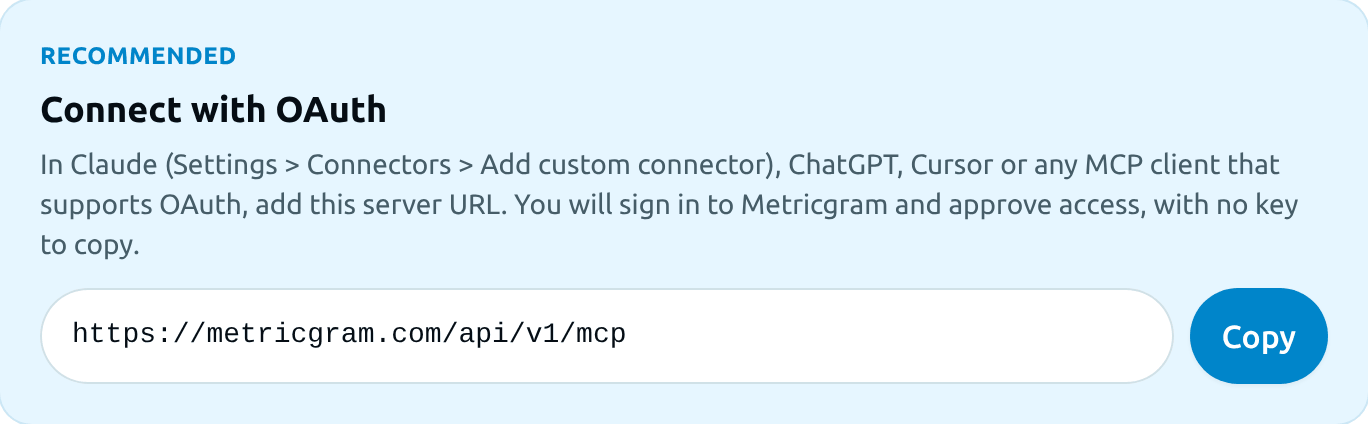
2. Add it to your AI client
- Claude: go to Settings > Connectors > Add custom connector, paste the URL and save.
- Claude Code: run
claude mcp add --transport http metricgram https://metricgram.com/api/v1/mcp, then type/mcpto sign in. - ChatGPT, Cursor and other clients: add a new MCP server (some clients call it a connector) with the same URL and choose OAuth if the client asks for an authentication method.
3. Sign in and approve access
Your client opens a Metricgram page in the browser. Sign in if you need to, check the name of the app and its permissions, and click Allow. You are sent back to your client and the connection is ready.
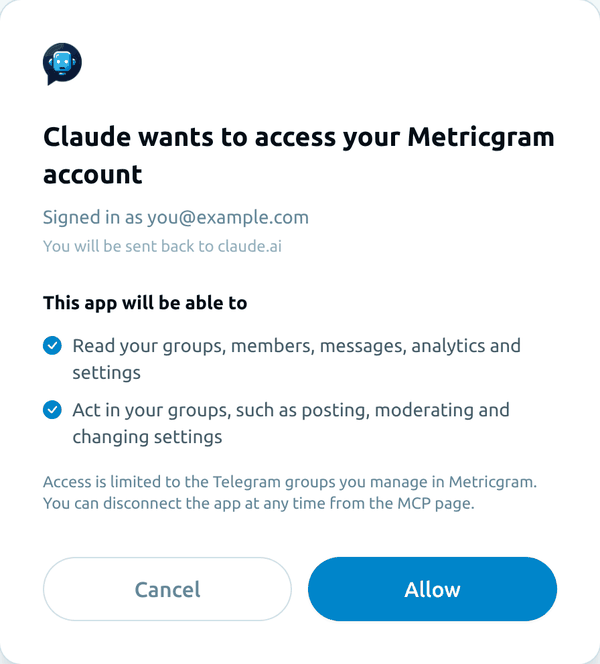
The page shows:
- The app that is asking for access and the address you will be sent back to.
- What the app will be able to do: Read your groups, members, messages, analytics and settings, and Write, which means acting in your groups by posting, moderating or changing settings.
- A warning when Metricgram has not verified the app. Only continue if you started the connection yourself.
4. Try it
Ask your agent something like "Summarize this week's activity in my group" or "Which members have not written in the last 30 days?".
Manage connected apps
Every app you approve appears under Connected apps on the MCP page, with its permissions and the date you connected it. Click Disconnect to remove its access immediately.

OAuth or API key?
Use OAuth whenever your client supports it: there is no secret to store and you can disconnect the app at any time. For clients without OAuth support, create an API key under Integrations > API and use the configuration examples on the MCP page. The article API & MCP access explains how keys and scopes work.
Troubleshooting
- "Your account needs an active Metricgram plan": MCP requires an active plan or the free trial.
- "This connection request is not valid": the request expired or was changed. Start the connection again from your AI client.
- The agent cannot see a group: access is limited to the Telegram groups you manage in Metricgram. Check that the group is connected and that the bot is still an administrator.
- The agent cannot post or moderate: the connection only has Read access. Disconnect it and connect again from a client that asks for write access.
Was this article helpful?
Thank you for your feedback!